Configure Host PC Network Card
💡 Please first confirm if the network card connecting the computer and the WPC device is in the same domain?
- Example:
192.168.1.110and192.168.1.xxxbelong to the same domain. - Example:
192.168.1.xxxand192.168.0.xxxor192.168.2.xxxbelong to different domains.
💡 It is recommended to turn off DHCP and use Static IP as much as possible, and set the correct IP address and subnet mask.
- WPC Device:
192.168.1.110Mask255.255.255.0 - User Side Computer:
192.168.1.20Mask255.255.255.0
Correct domain settings are crucial for normal communication with WPC network devices. Please follow the steps below to change the domain settings:
1. Open Windows Settings
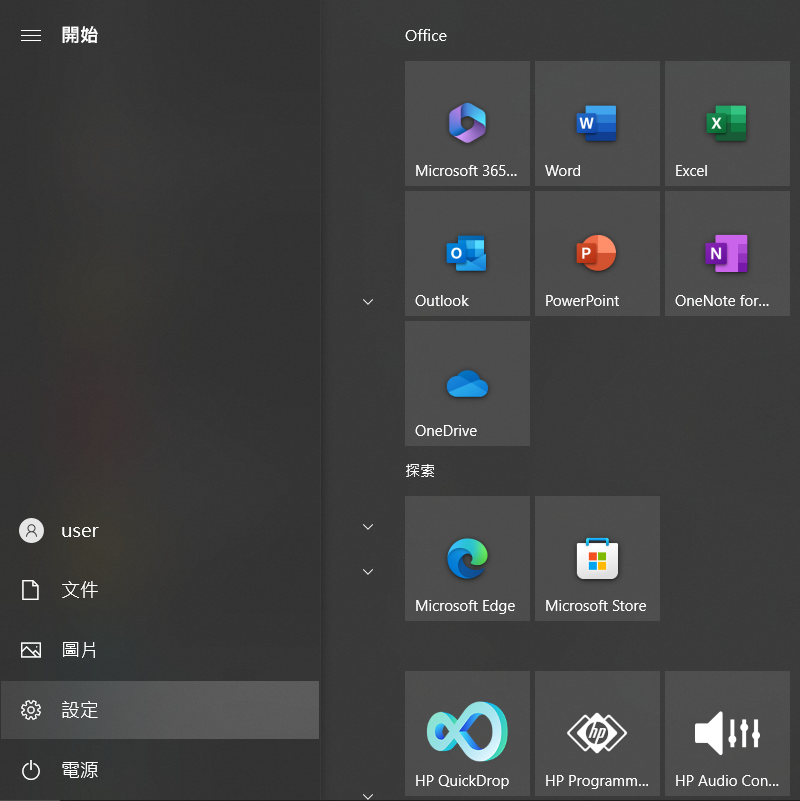
Click the "Start" button and select the "Settings" icon to enter the settings page.
2. Enter Ethernet Settings Page
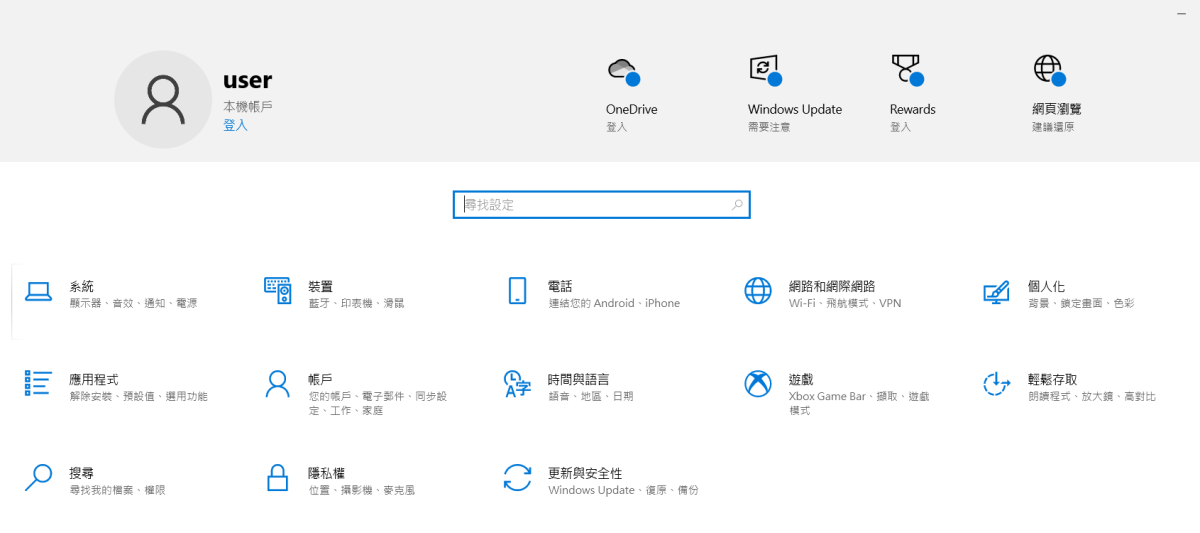
On the "Settings" page, select "Network & Internet", then select "Ethernet" on the left.
3. Change Adapter Options
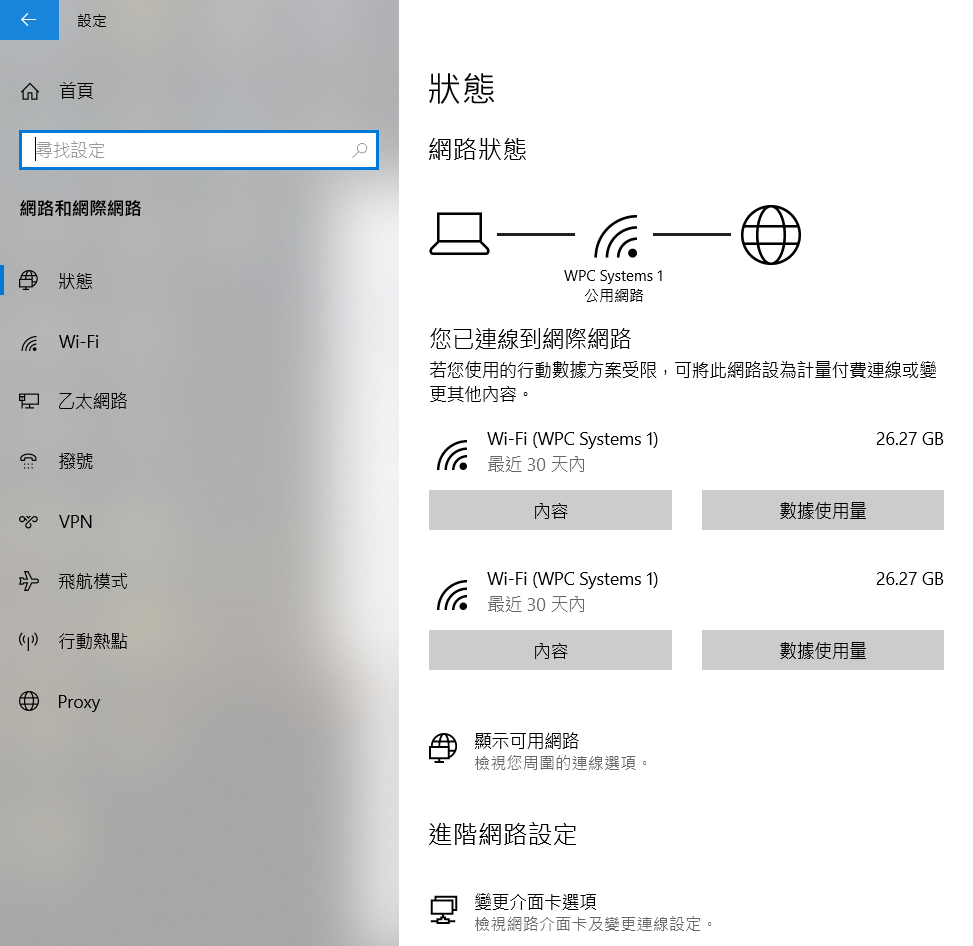
On the Ethernet settings page, click "Change adapter options".
4. Select Network Connection
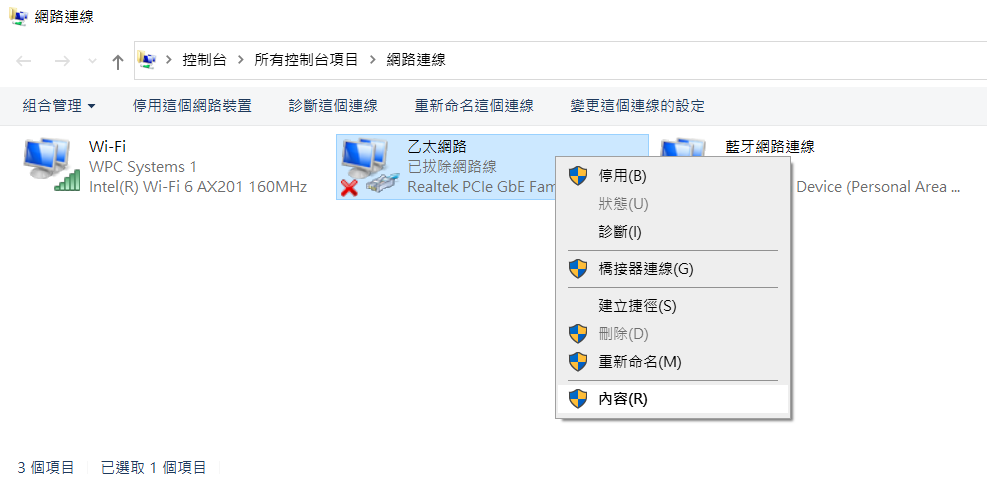
In the "Network Connections" window, find the Ethernet connection you are using, right-click and select "Properties".
5. Configure IPv4 Settings
In the "Properties" window, double-click "Internet Protocol Version 4 (TCP/IPv4)" to enter the IPv4 settings page.
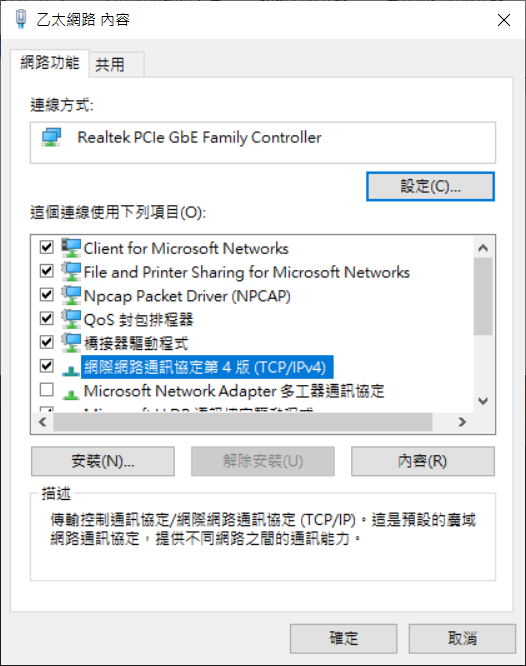
6. Set IP Address
Select "Use the following IP address" and manually enter the IP address, subnet mask, and default gateway. Ensure the IP address is within the same subnet and does not conflict with any other device's IP address.
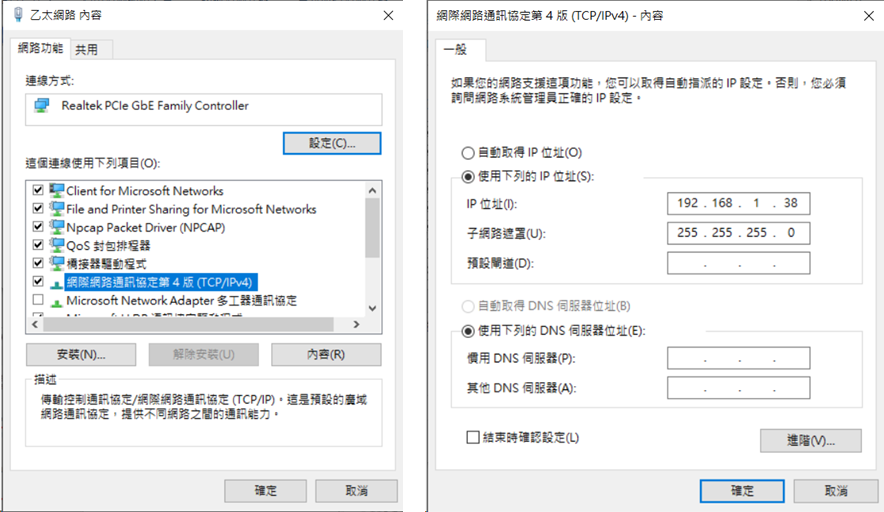
| Parameter | Setting Value |
|---|---|
| IP Address | 192.168.1.38 (Do not use the same IP as the WPC device) |
| Subnet Mask | 255.255.255.0 |
After completing the settings, click "OK" to save the changes. Then click "OK" again to close the window.
7. Confirm Connection Status
Open the Command Prompt and enter the following command to test the connection:
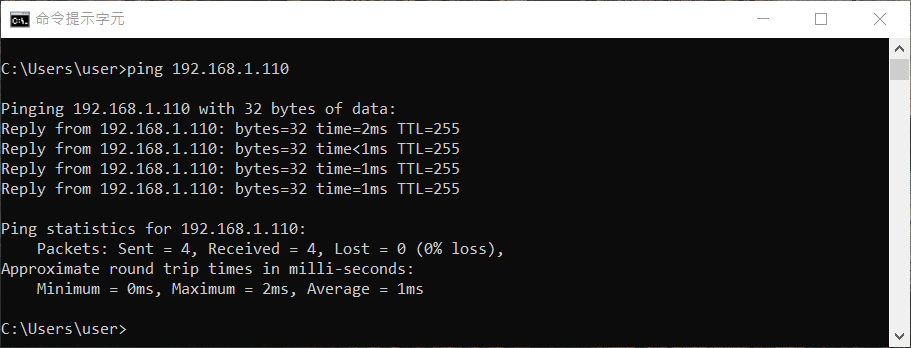
ping 192.168.1.110
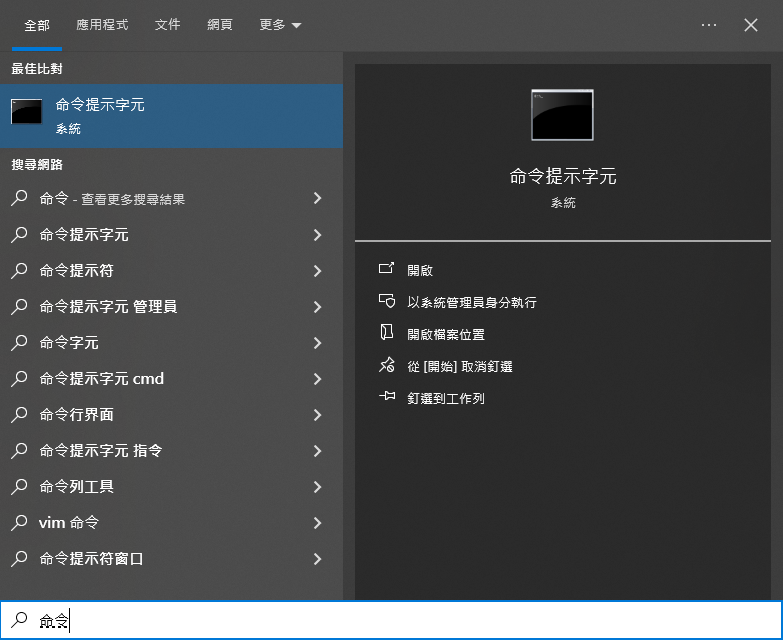
If the following response appears, it means that the WPC device and the computer have successfully connected:
If you still encounter communication problems, you can try replacing it with a new network cable or seek technical support from WPC.