WIFI Device Functions
Refresh
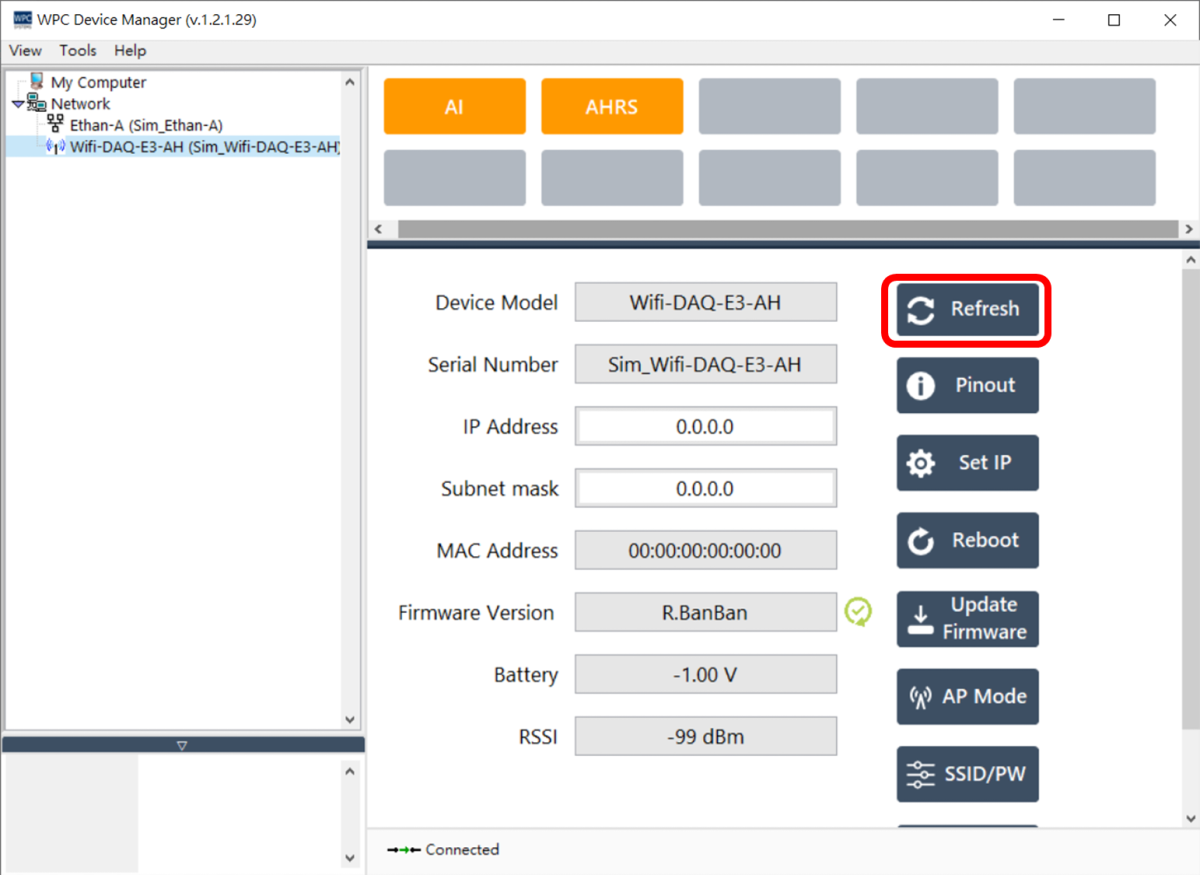
Click the "Refresh" button to re-read and update WIFI device information.
Pinout
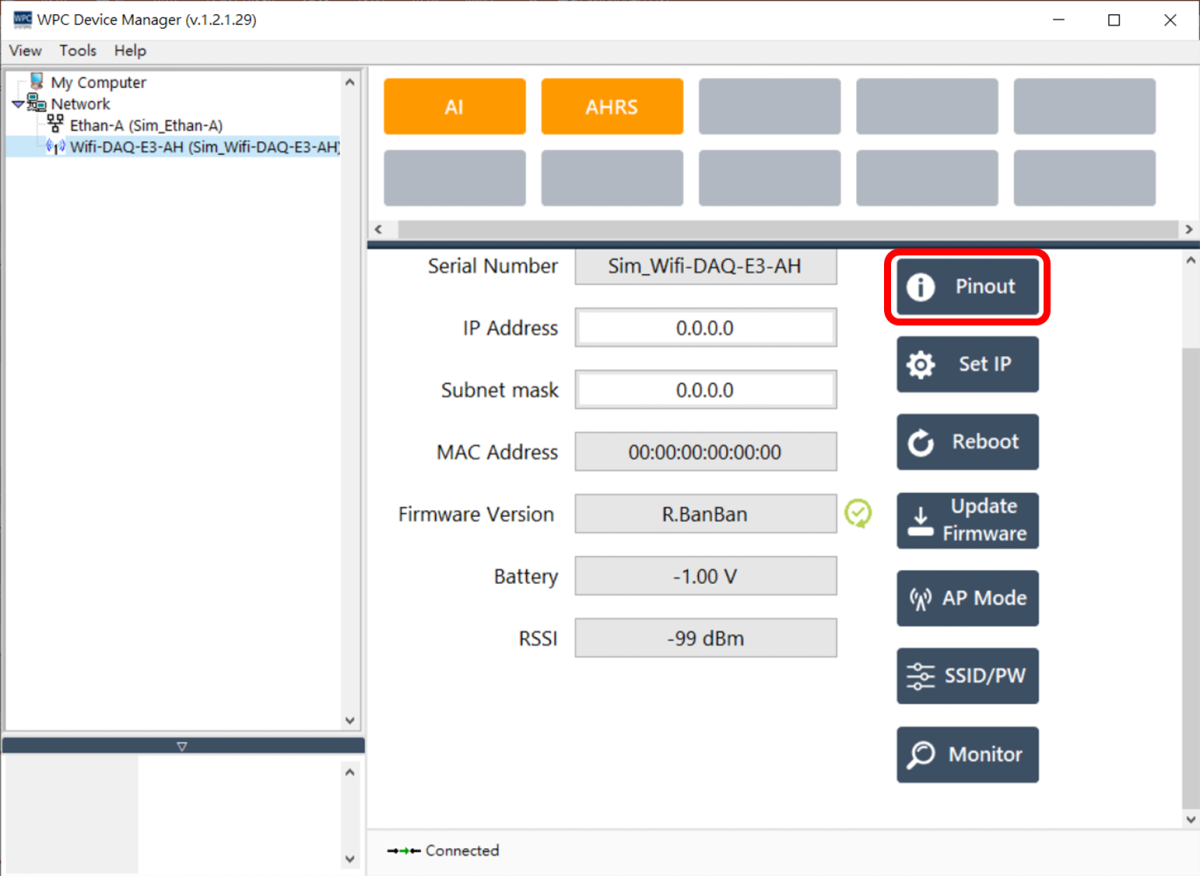
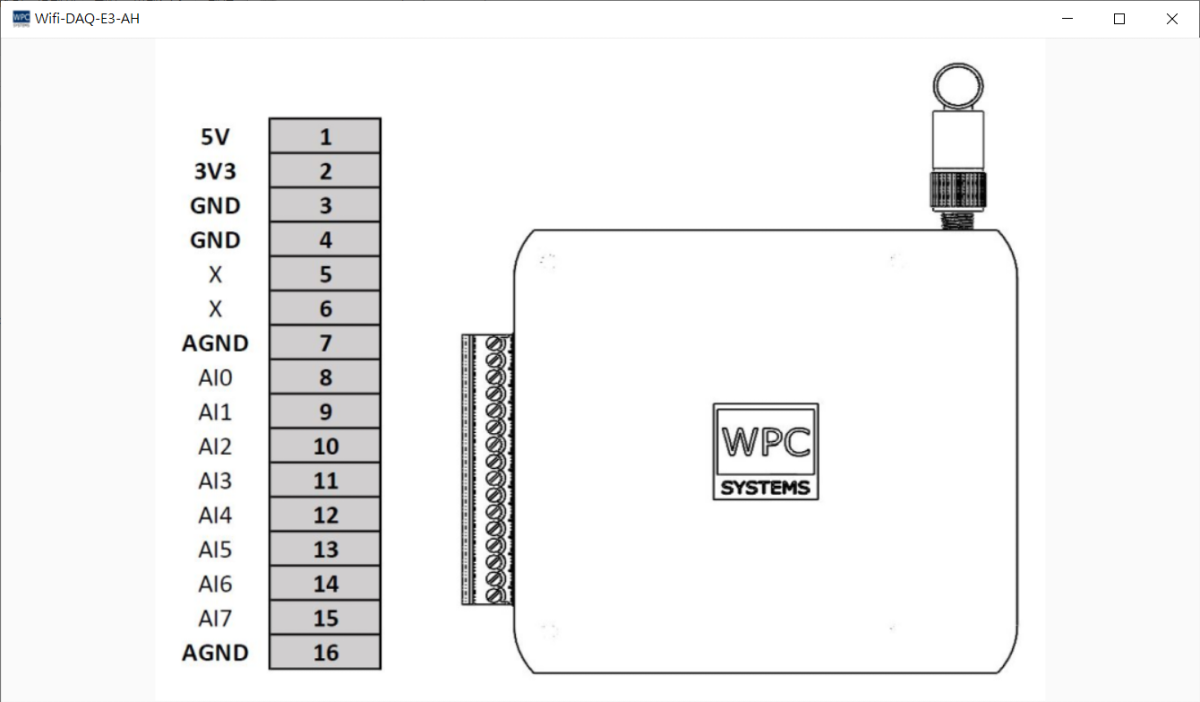
Click the "Pinout" button to open the pinout definition window. The window size can be adjusted based on the user's requirements.
Set IP Address
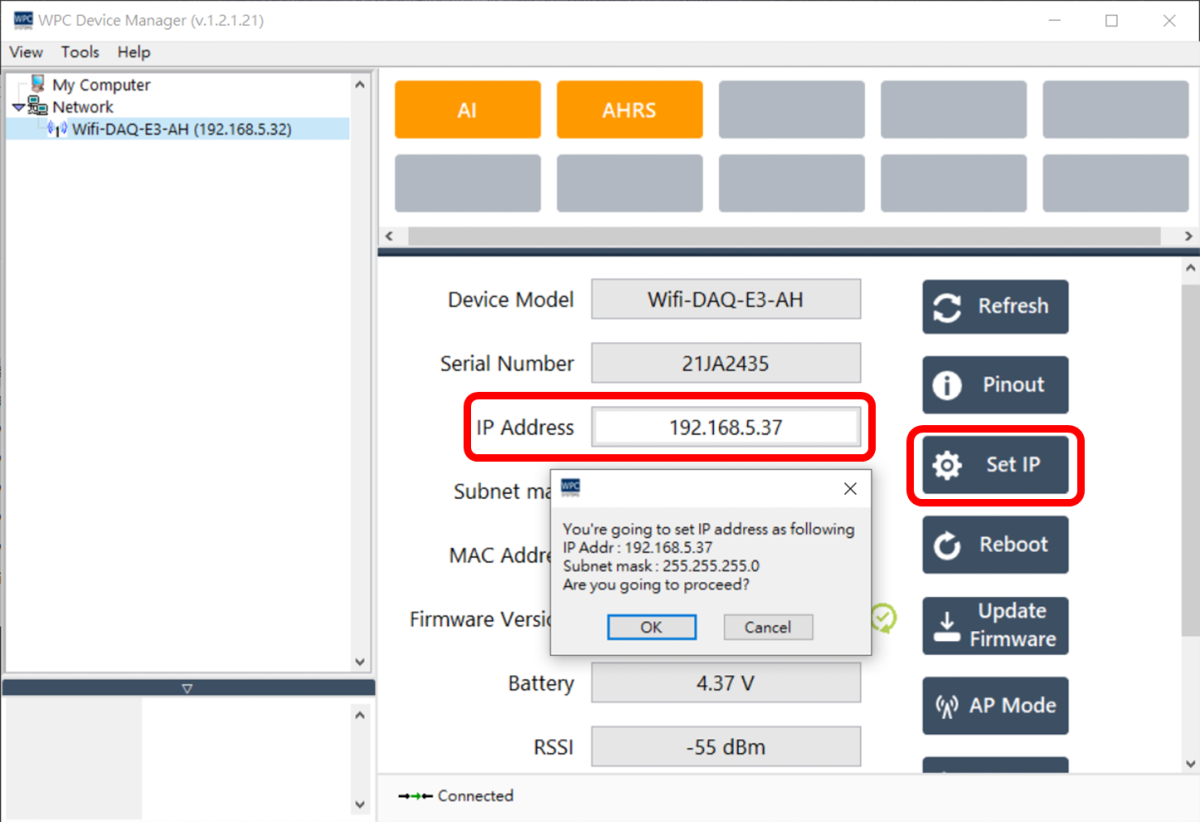
The steps to change the device IP address are as follows:
- Enter the new IP address in the IP Address field (e.g.,
192.168.5.37). - Click the "Set IP" button.
- After confirming the IP address is correct, click "OK".
- The system will prompt that the device needs to be rebooted to apply the settings; please click "OK".
Reboot
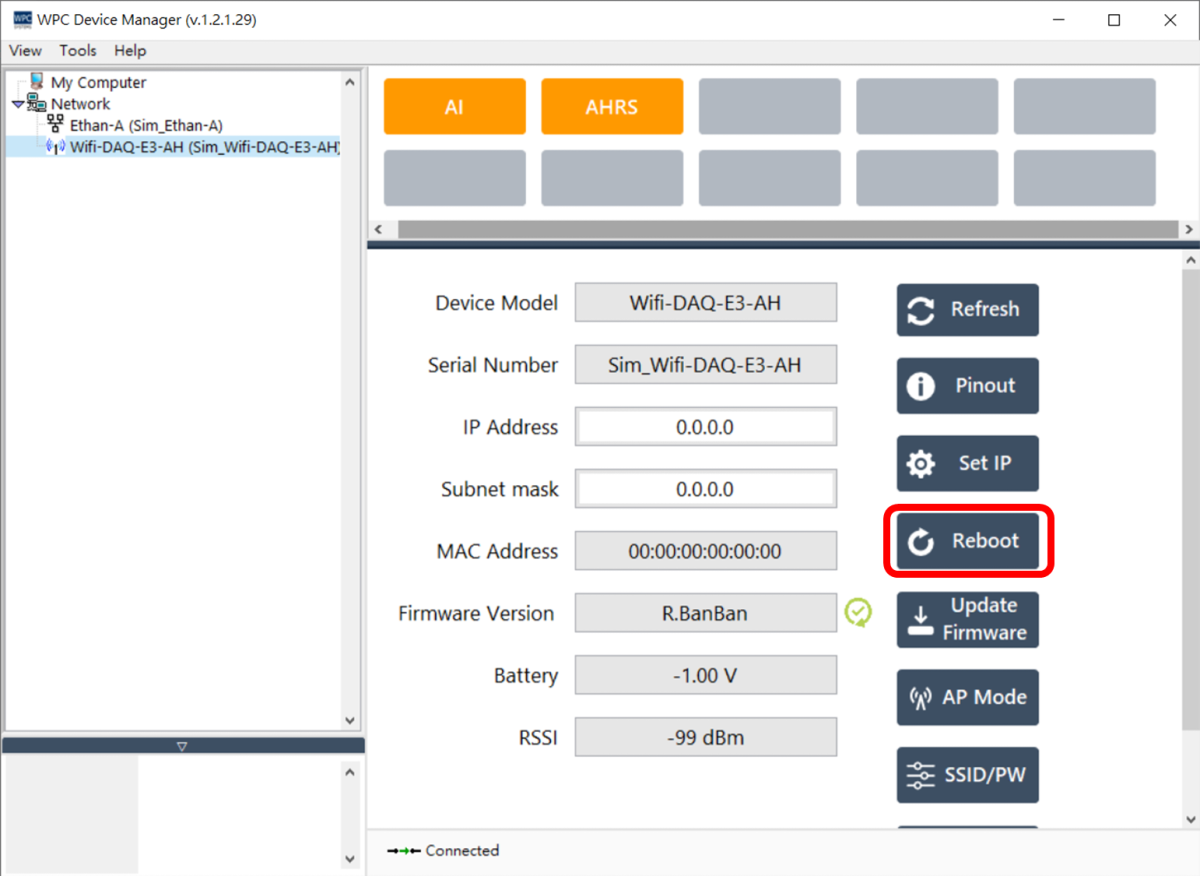
To reboot the device via software, please click the "Reboot" button.
Update Firmware
To update the WIFI device firmware, please follow these steps:
-
Click the "Update Firmware" button.
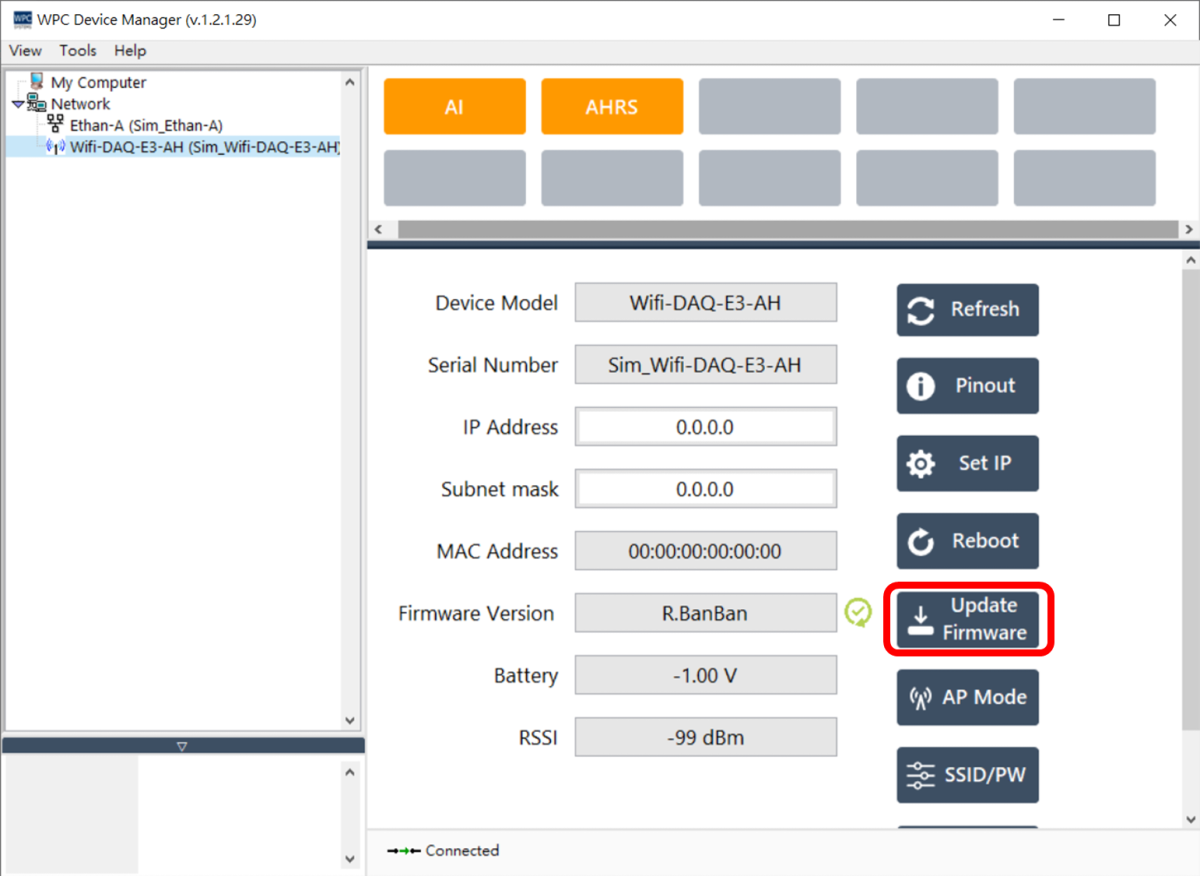
- ⚠️ Icon: Indicates that the current firmware version is outdated.
- ✅ Icon: Indicates that the current firmware is up to date.
-
Select the corresponding firmware file (
.bin) from the file browser.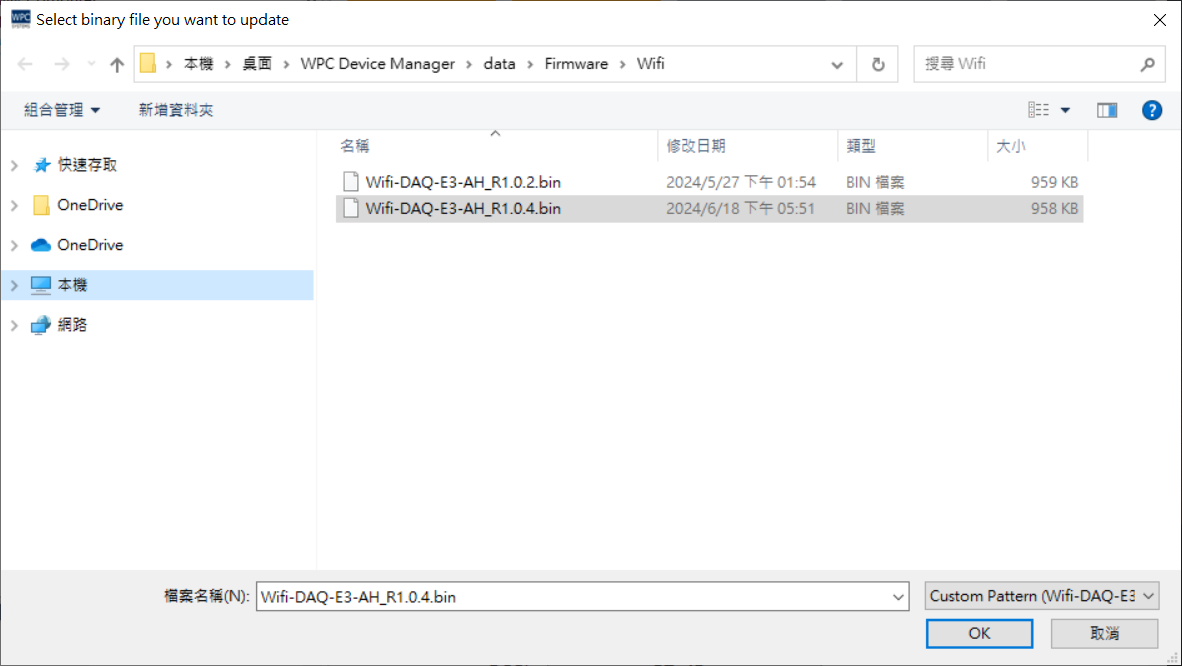
-
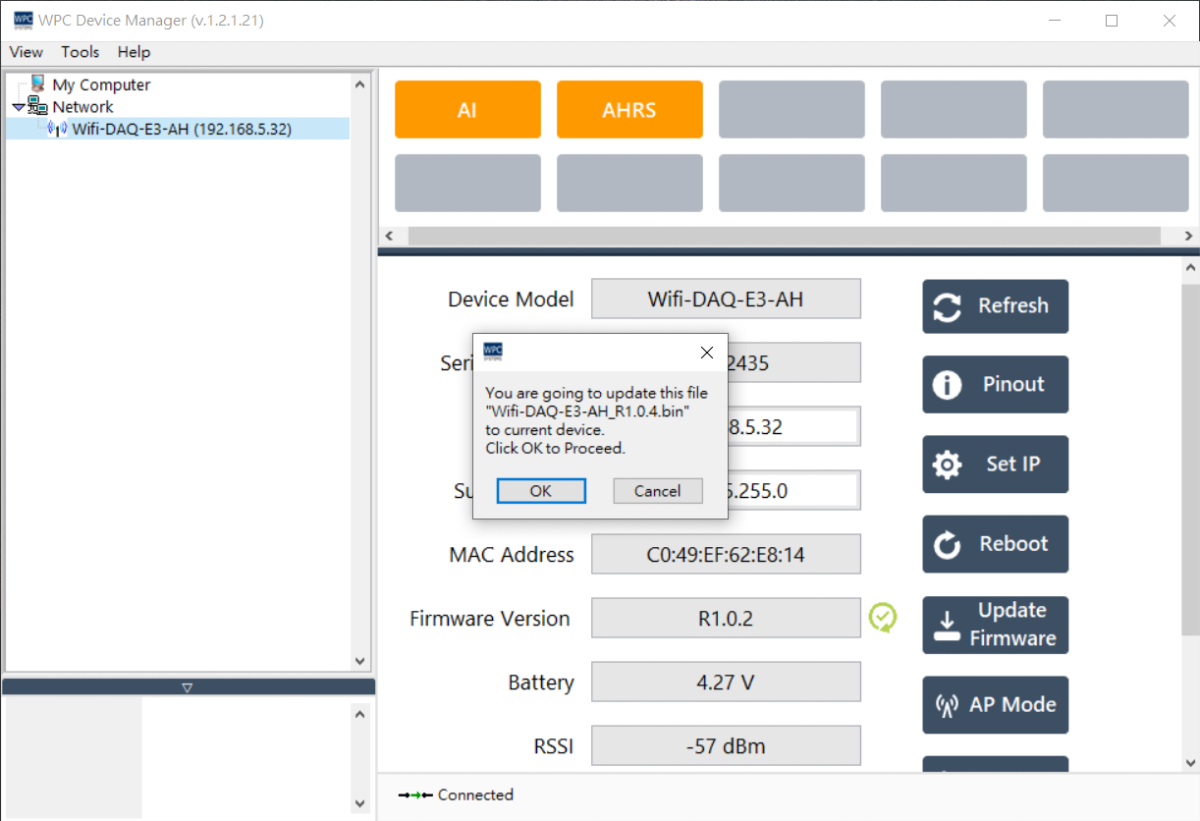
A confirmation window will pop up; click "OK" to start writing.
-
Wait for the progress bar to complete.
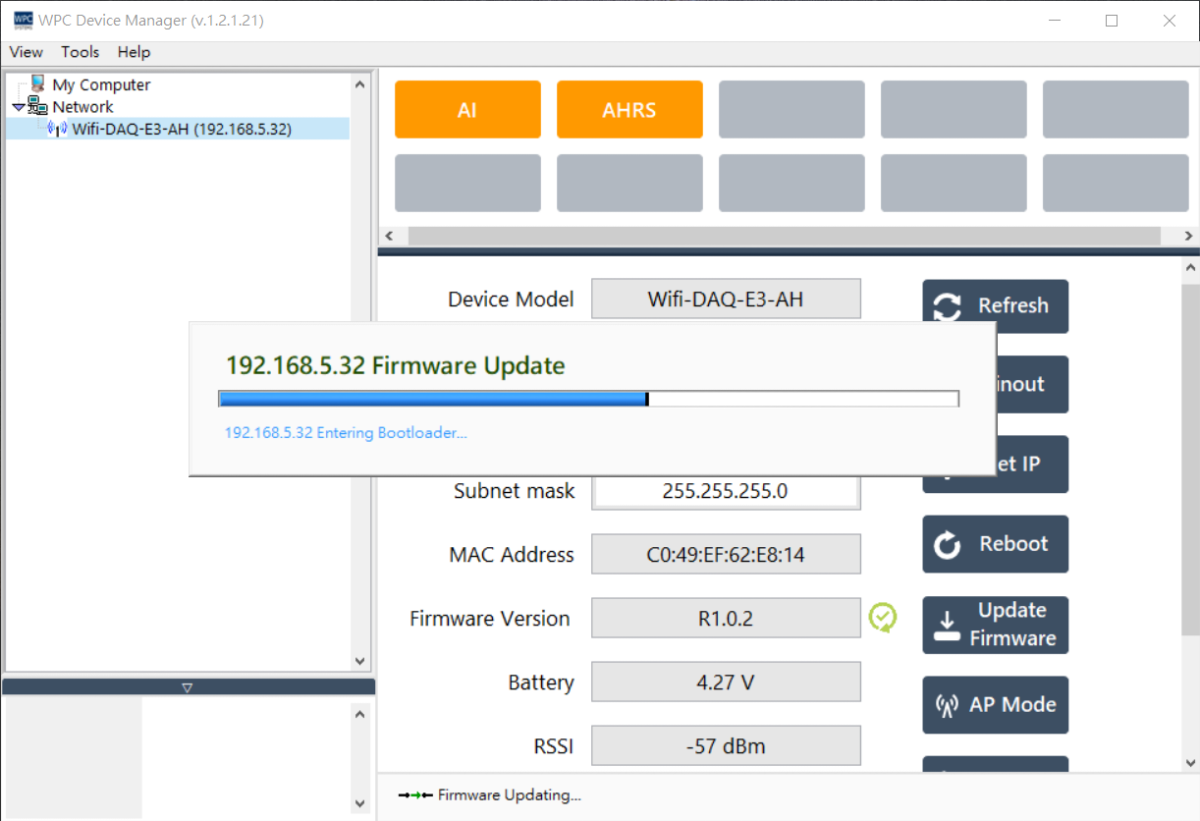
Do not turn off the power or disconnect the wireless connection during the update process. If the update fails due to interruption, the device may malfunction and need to be returned to the factory for repair.
AP Mode
-
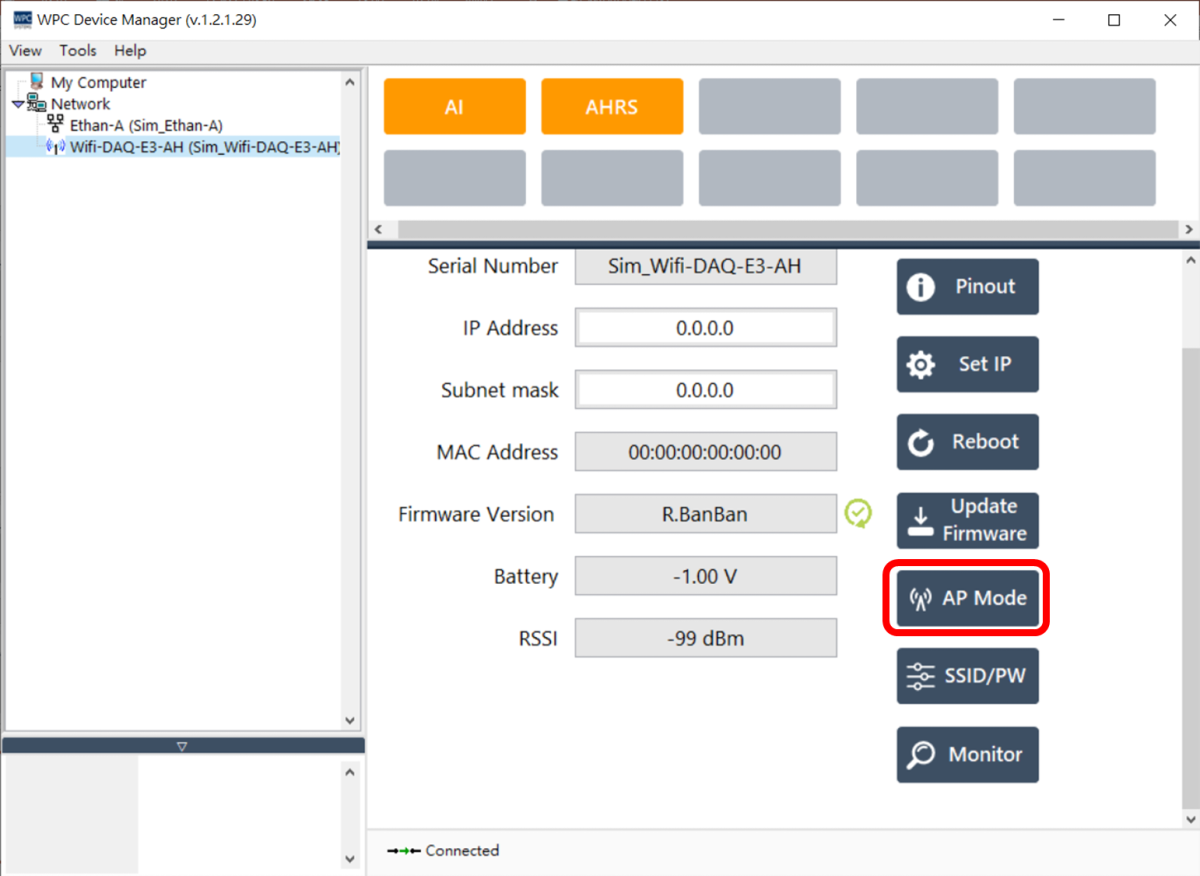
Click the "AP Mode" button to enable the AP mode of the WIFI device.
-
WDM will pop up a confirmation window; please click "OK" to continue.
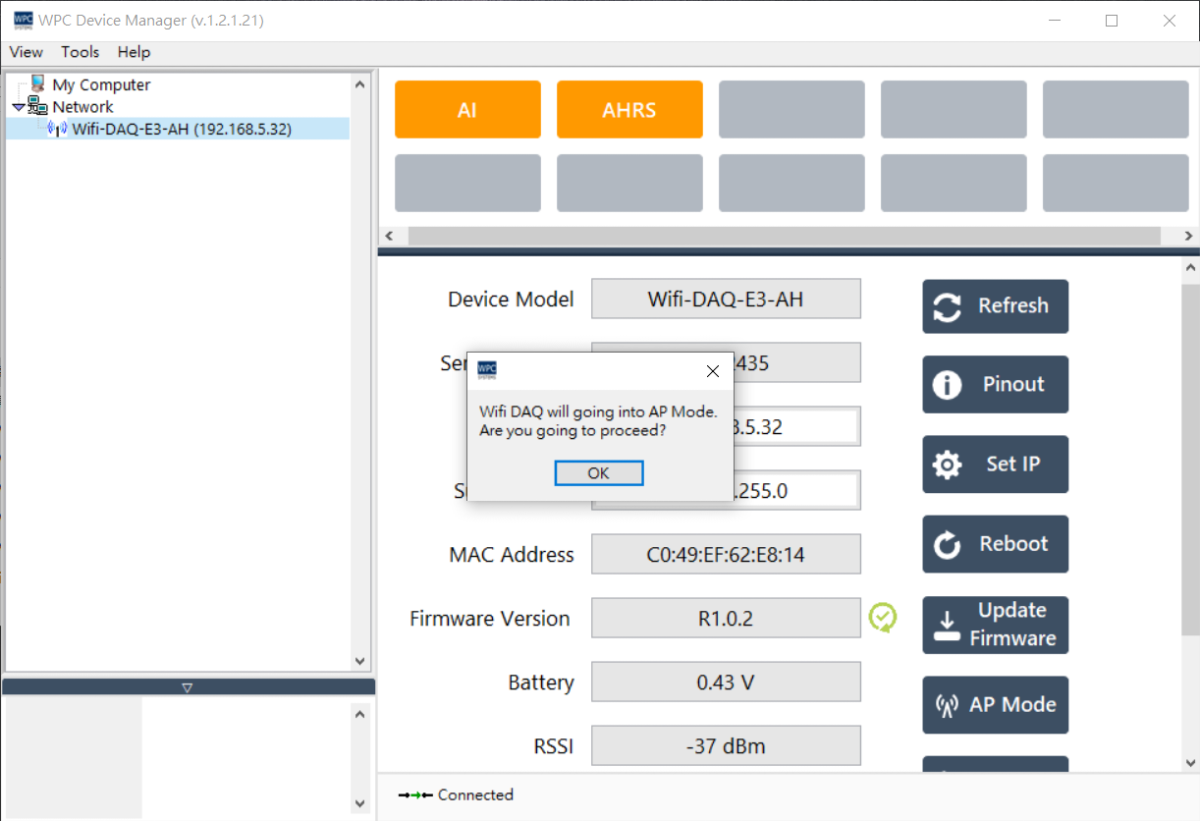
-
Please connect your computer to the specified AP device via Wi-Fi. After a successful connection, click "OK".
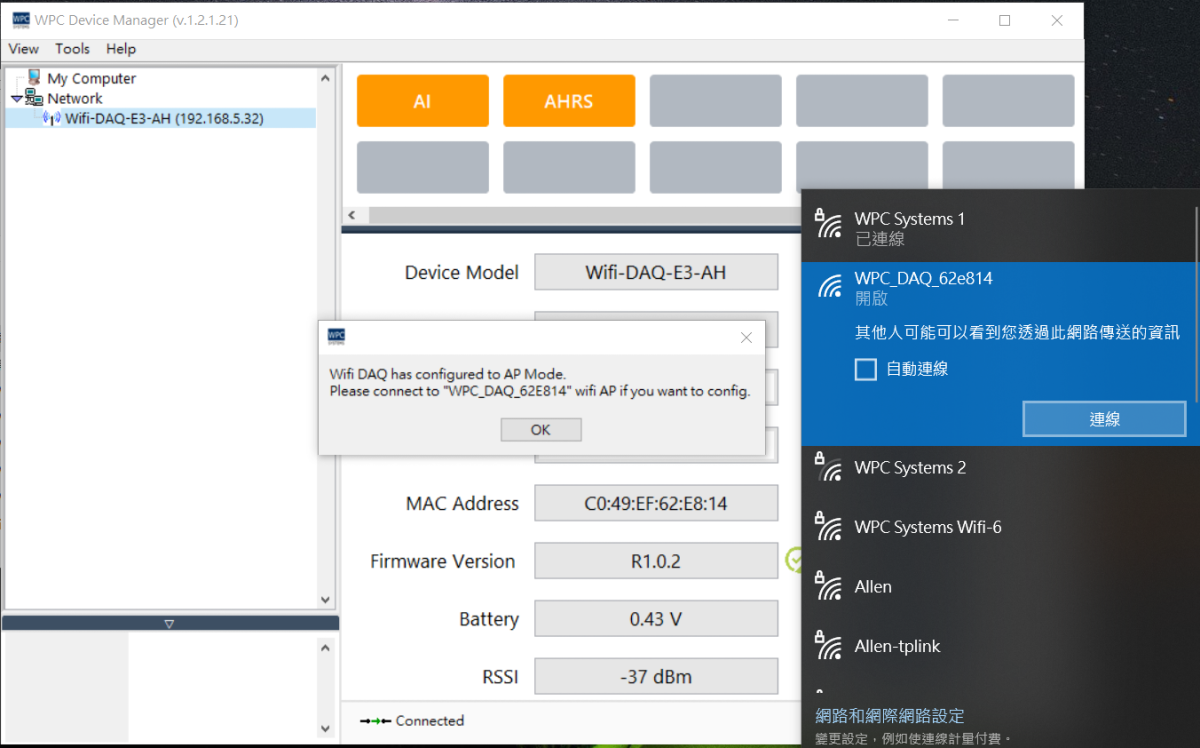
-
After clicking "OK", WDM will automatically open the browser.
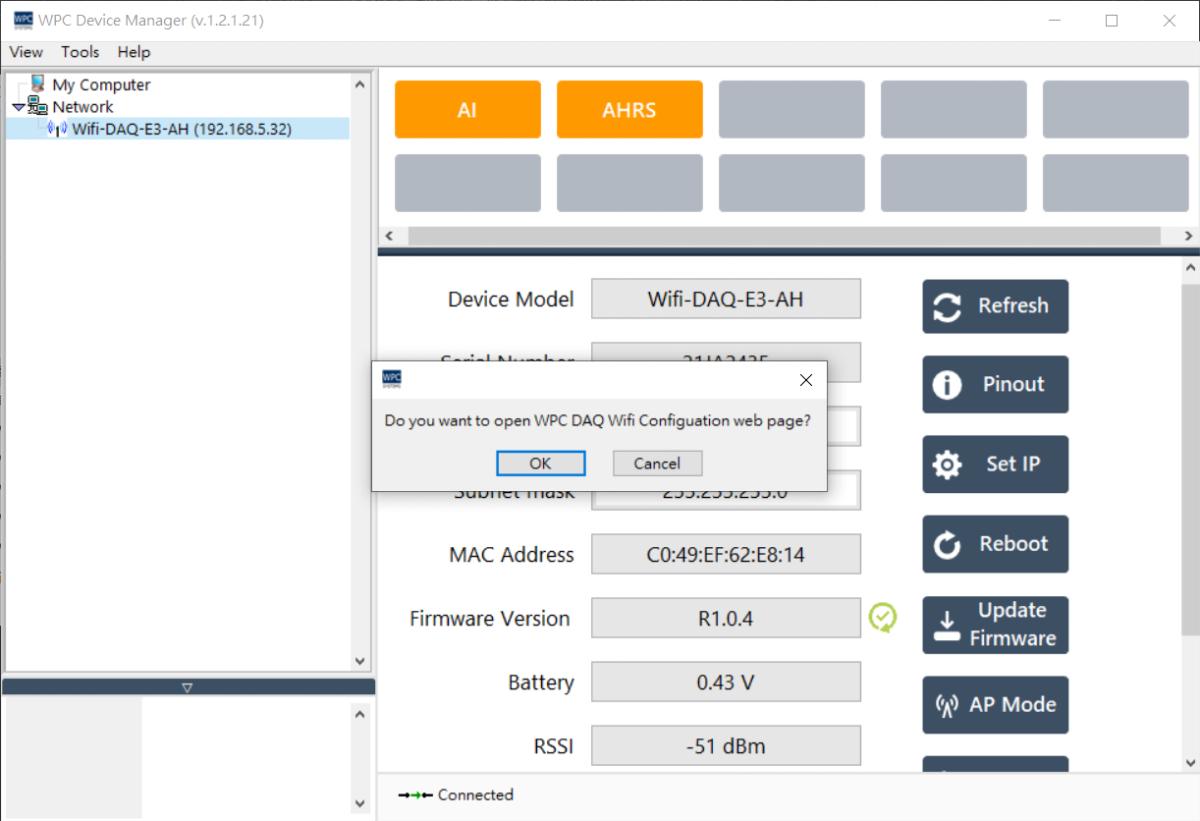
-
Please perform network configuration through that webpage. After completing the settings, click "Save" on the configuration page.
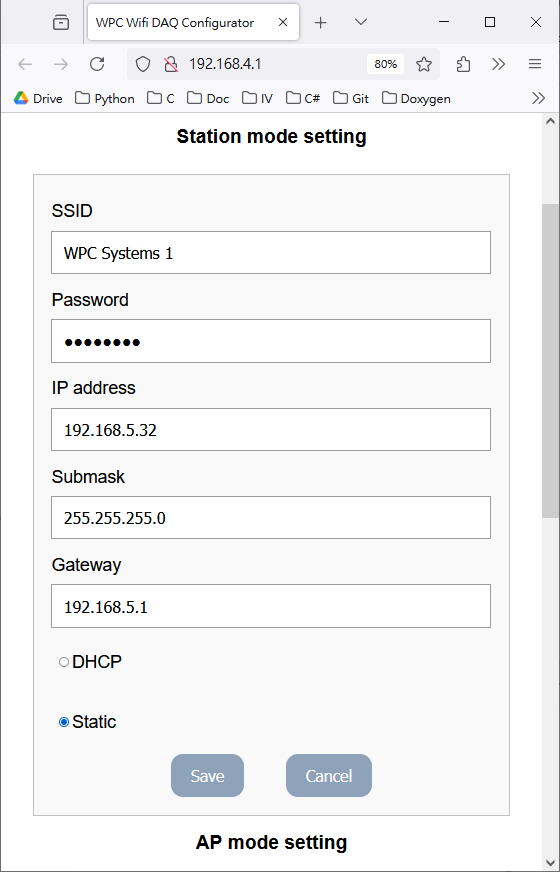
Please ensure the computer has successfully connected to the specified AP; otherwise, you will not be able to enter the configuration page.
Set SSID/PW
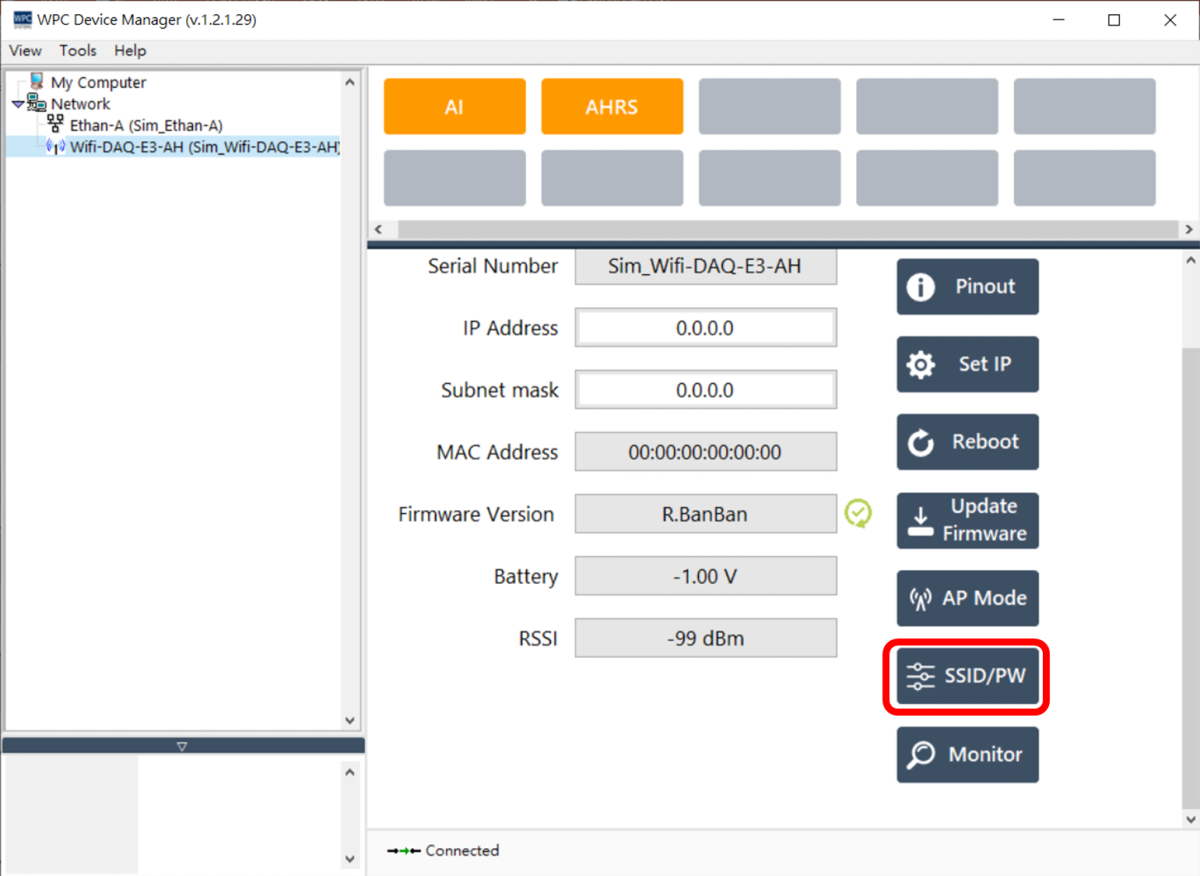
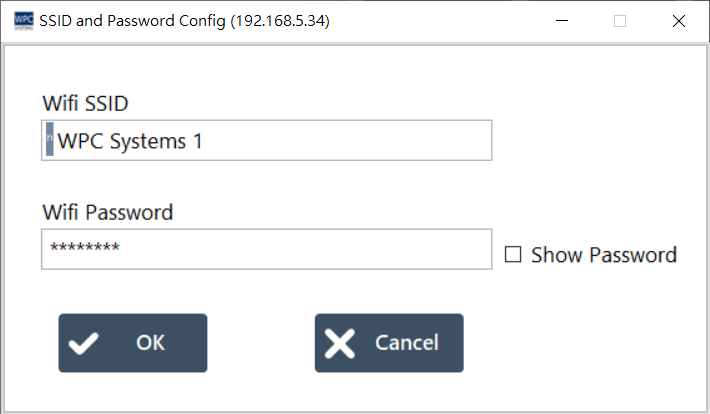
Click the "SSID/PW" button to set the Wi-Fi SSID and password that the device wishes to connect to, or to set the device to AP mode.
Signal Monitoring
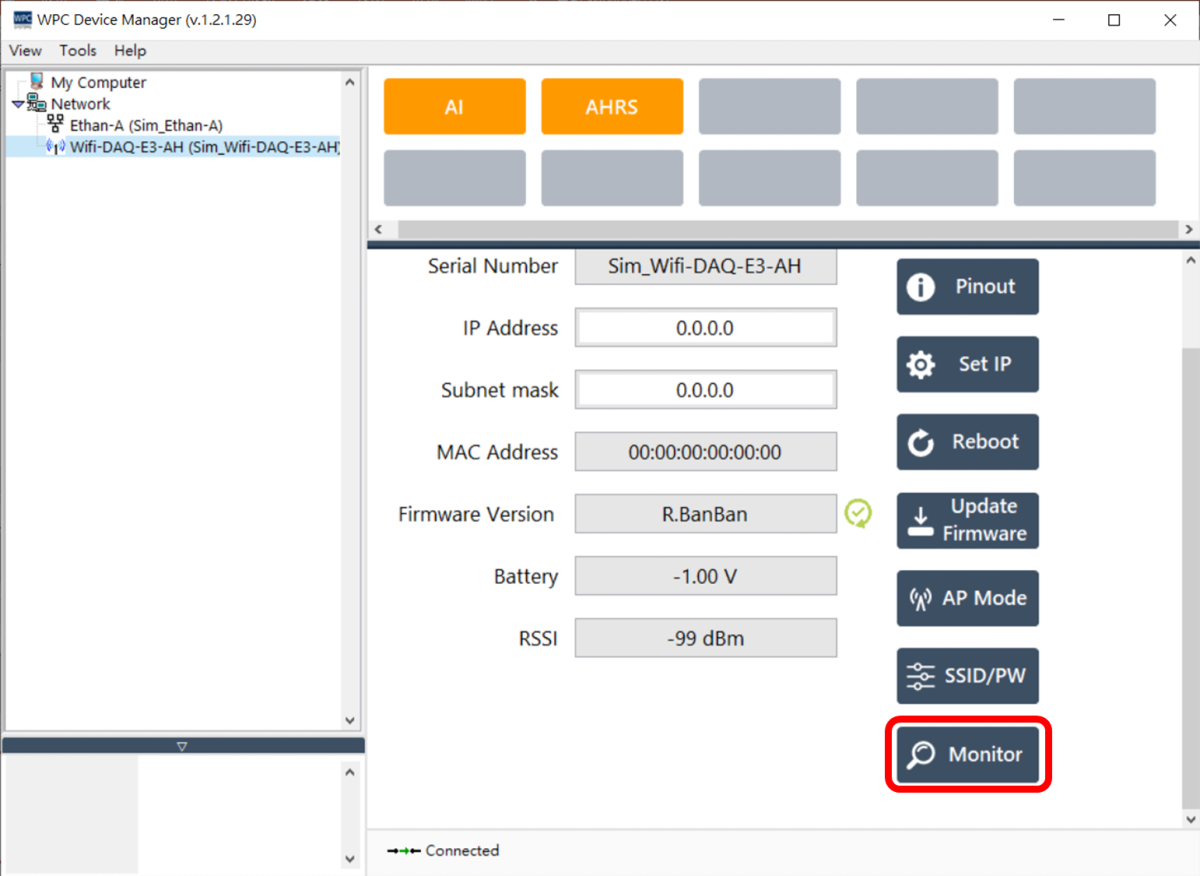
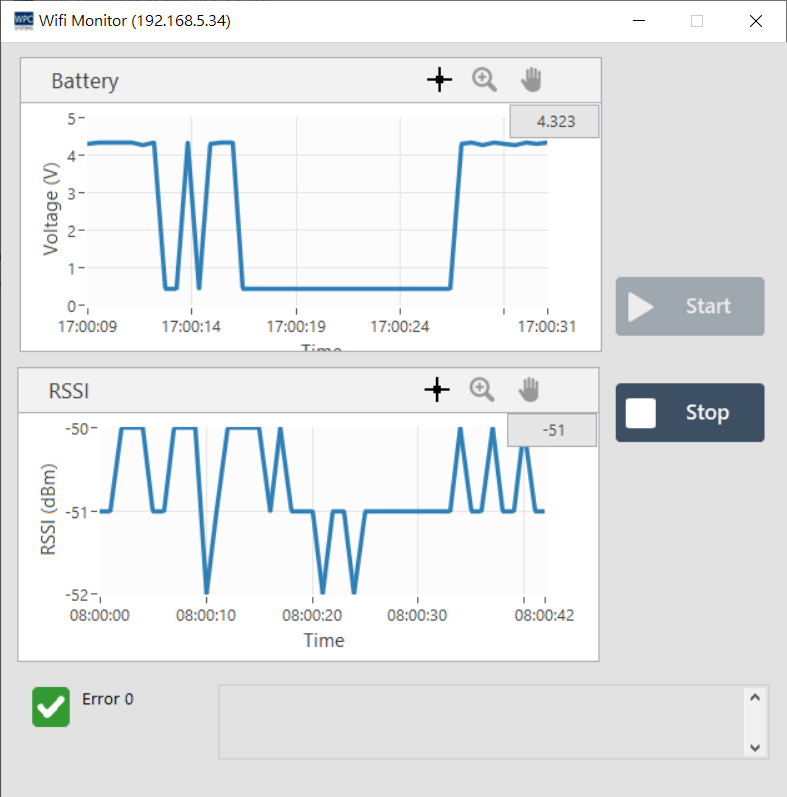
Click the "Monitor" button to view the current battery level and Received Signal Strength Indicator (RSSI) of the device.