General Functions
Search and Refresh
WDM provides an automatic search function that can scan for WPC devices within the network. To manually update the list, please perform the following operations based on the device type:
-
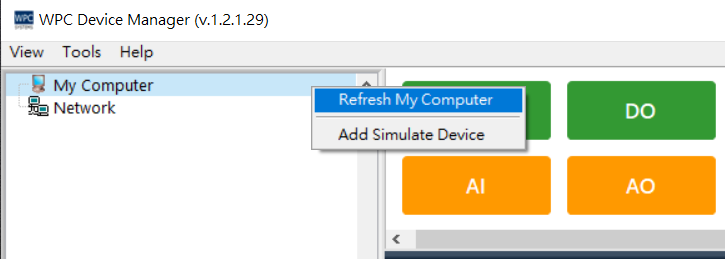
USB Devices: Move the mouse cursor to the "My Computer" area, right-click, and select "Refresh My Computer".
-
Network Devices: Move the mouse cursor to the "Network" area, right-click, and select "Refresh Network".
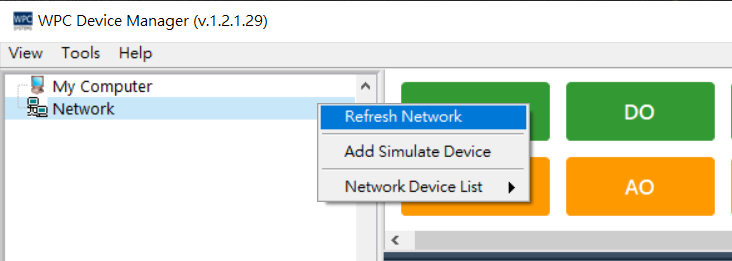
If you cannot find your network device in the list, please confirm that the IP addresses of the host computer and the device are within the same subnet.
Adding Simulated Devices
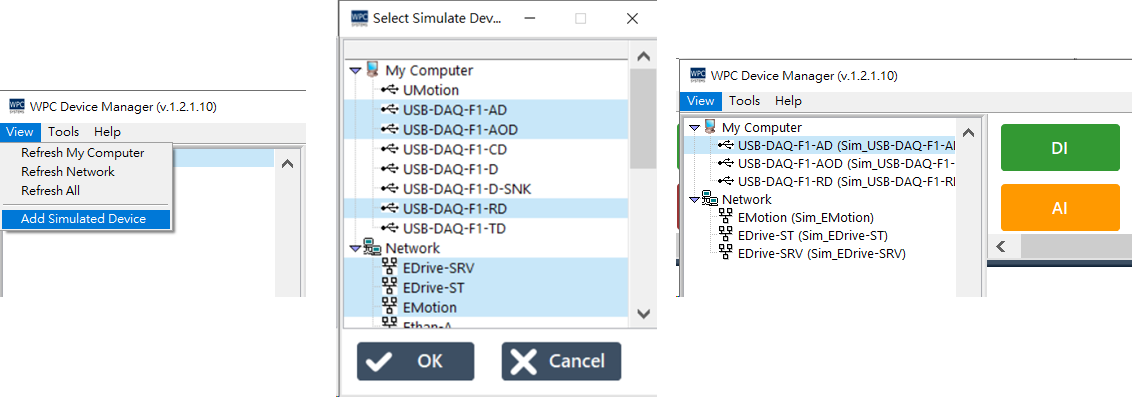
WDM supports simulated device functions, allowing users to preview pinouts and test panel functions without physical hardware.
Operating Steps:
- Click "View" in the menu bar.
- Select "Add Simulated Device".
- Choose the model you wish to simulate from the device list that pops up (hold the Ctrl key to multi-select).
- Click "OK" to confirm adding.
Identify Network Devices
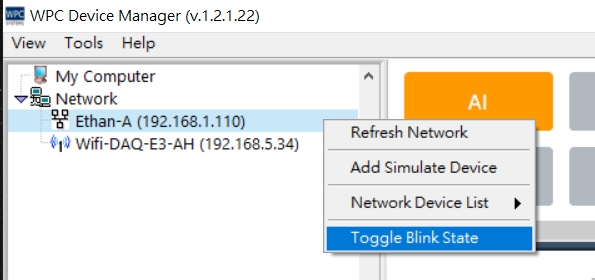
When multiple network devices are connected simultaneously, specific devices can be quickly identified using the LED blinking function.
Operating Steps:
- In the "Network device list", move the mouse cursor to the target device.
- Right-click and select "Toggle Blink State".
- The LED indicator on that device will then begin to blink rapidly.
- To stop blinking, please select "Toggle Blink State" again or click the option to cancel.
This function only supports WPC Ethan series products.