USB Device Functions
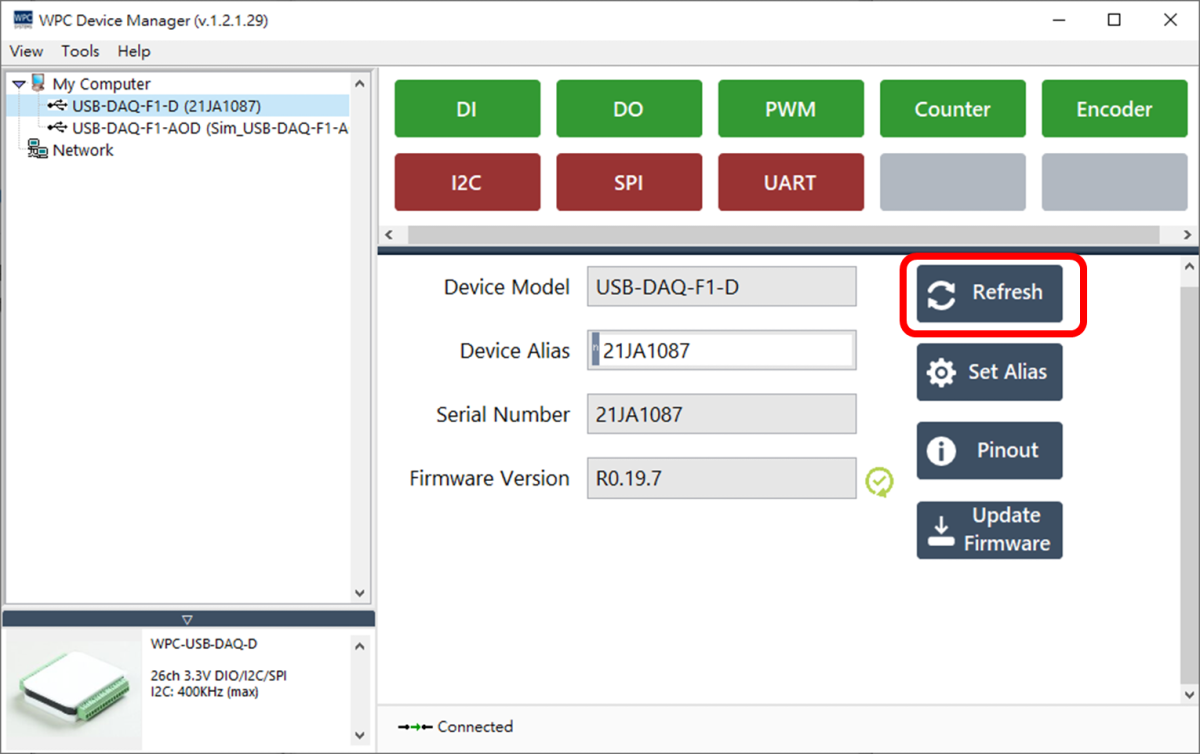
Refresh
Click the "Refresh" button to re-read and update device information.
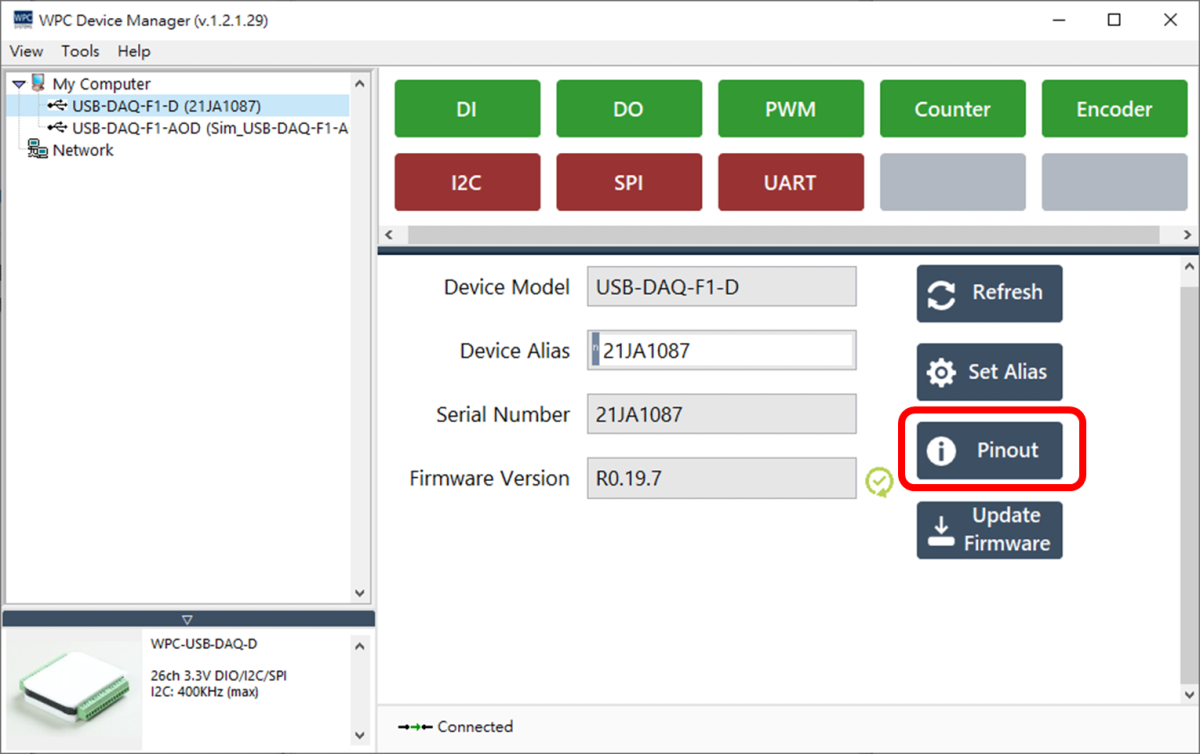
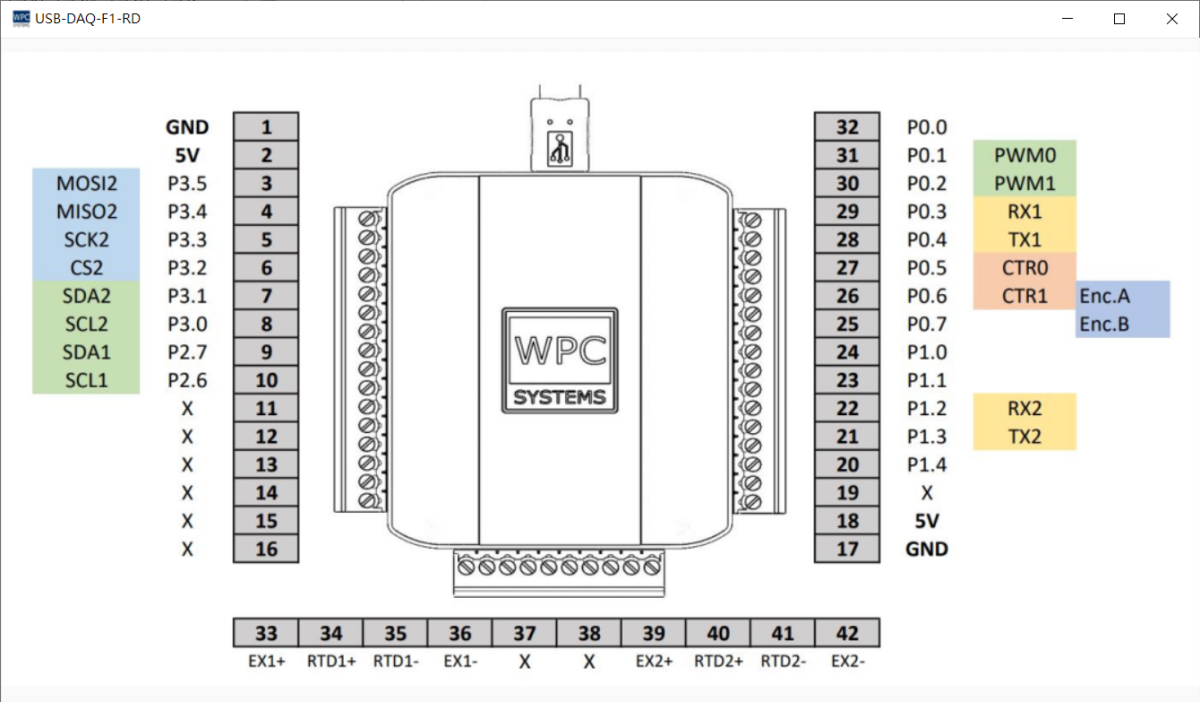
Pinout
Click the "Pinout" button to open the pinout definition window, allowing users to inquire about the functions of each pin. The window size can be freely adjusted.
Update Firmware
To update the USB device firmware, please follow these steps:
-
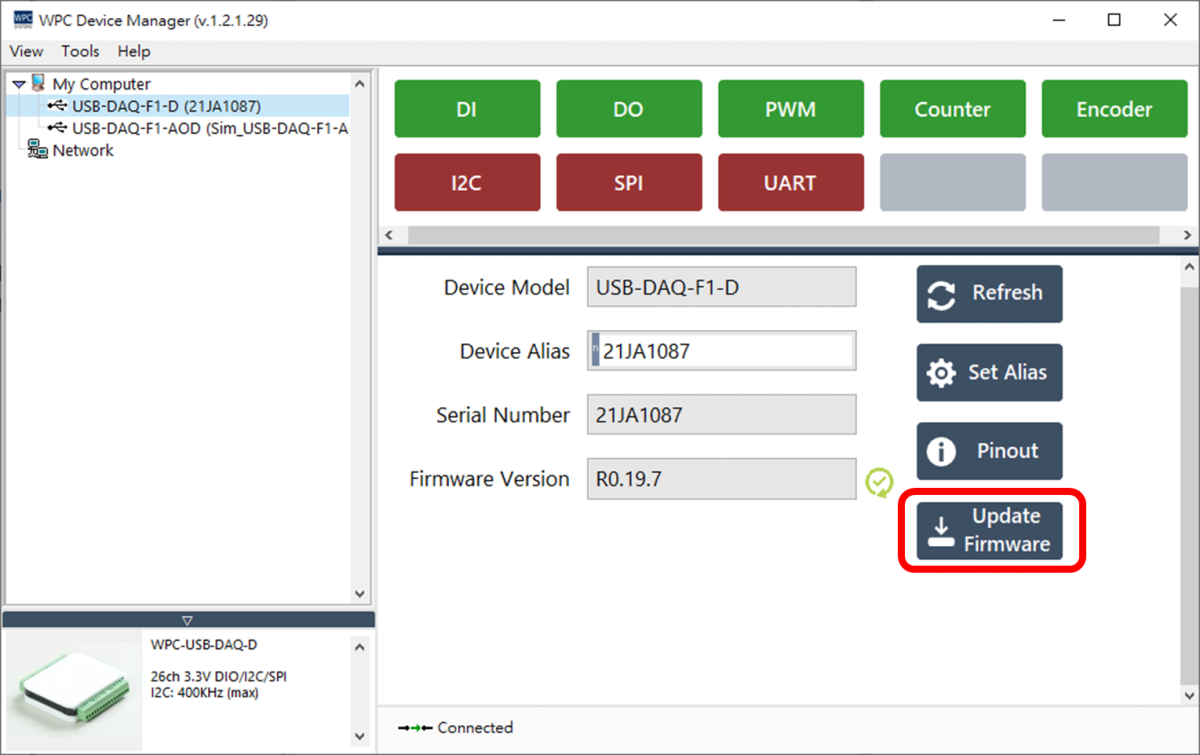
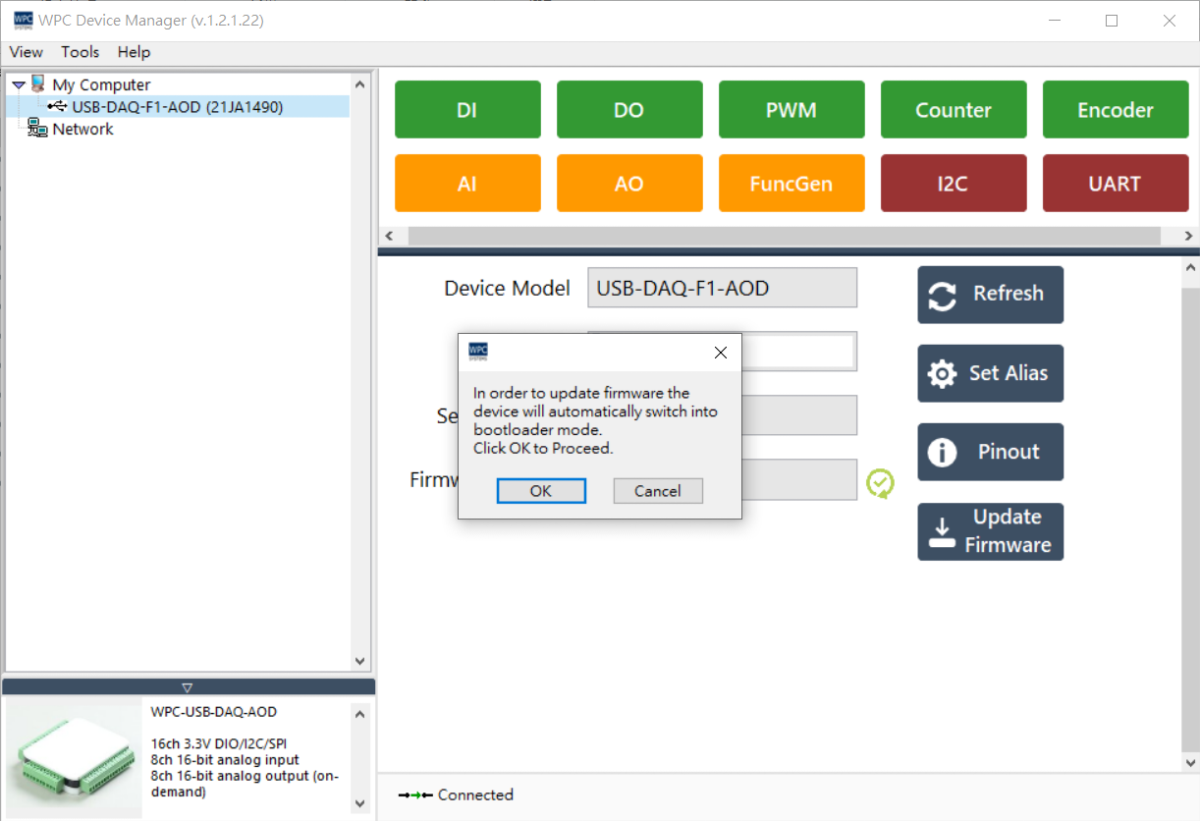
Click the "Update Firmware" button.
info
- ⚠️ Icon: Indicates that the current firmware version is outdated.
- ✅ Icon: Indicates that the current firmware is up to date.
-
A confirmation window will pop up; click "OK" to continue.
-
Select the corresponding firmware file (
.bin) from the file browser.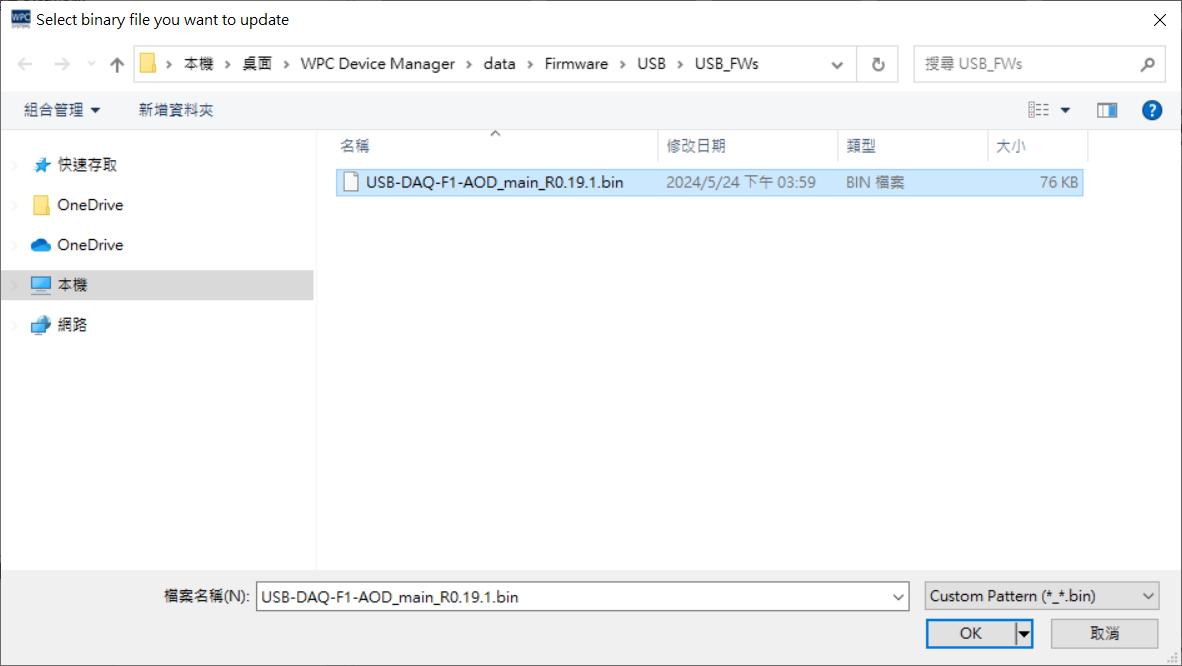
-
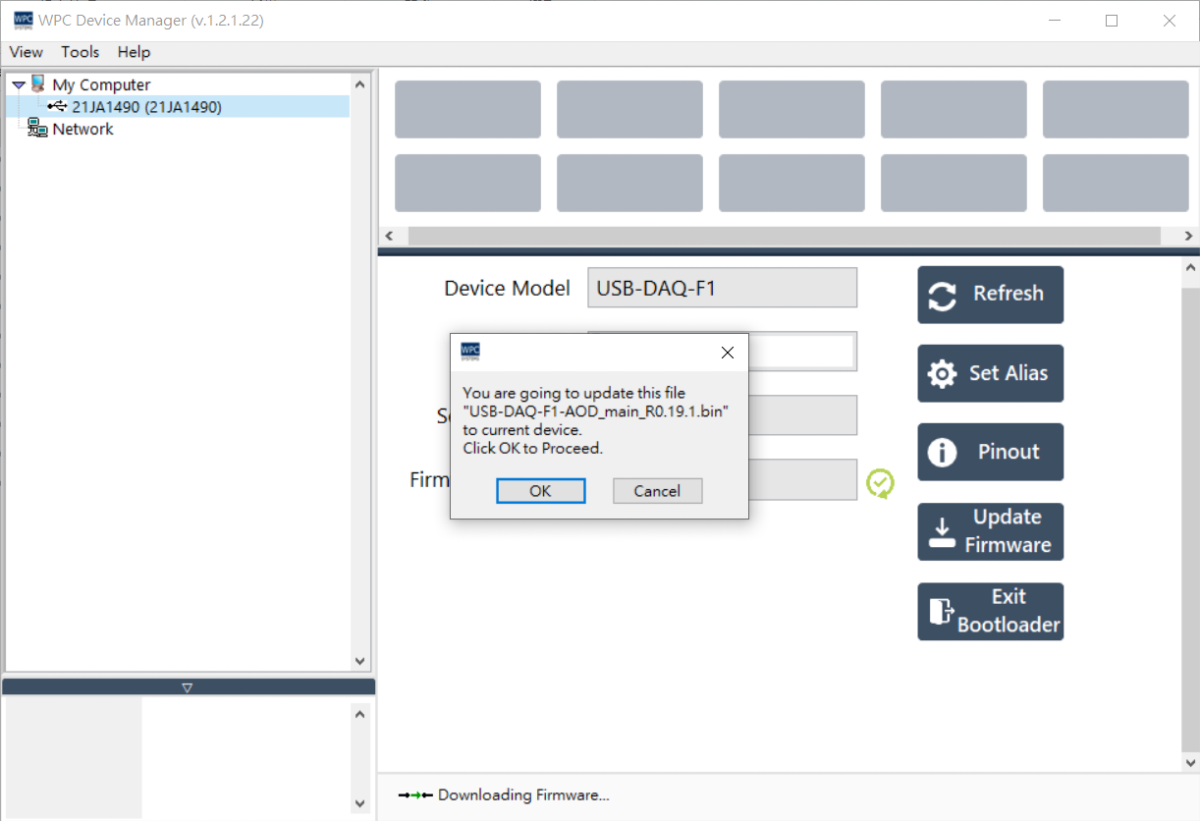
Confirm the update again and click "OK" to start writing.
-
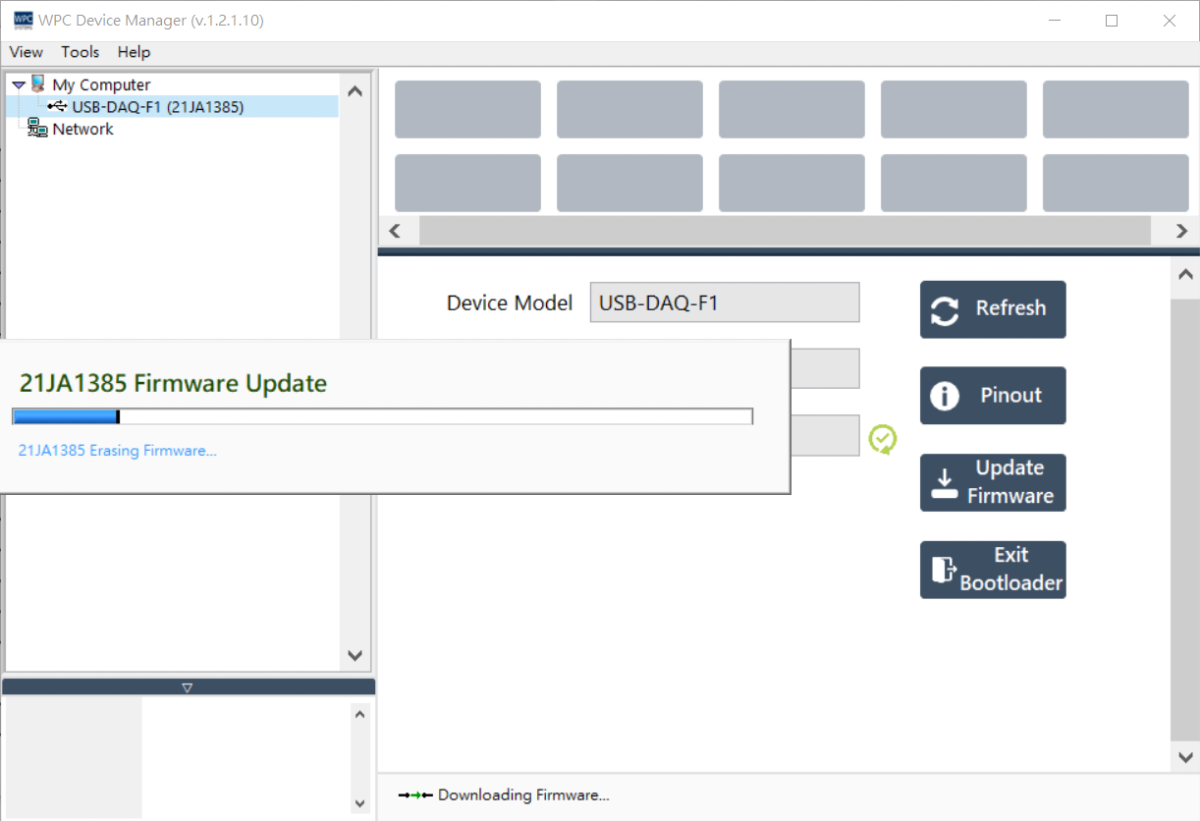
Wait for the progress bar to complete.
danger
Do not turn off the power or remove the USB connection during the update process. If the update fails due to interruption, the device may malfunction and need to be returned to the factory for repair.