Interface and Basic Operation
Main Screen Introduction
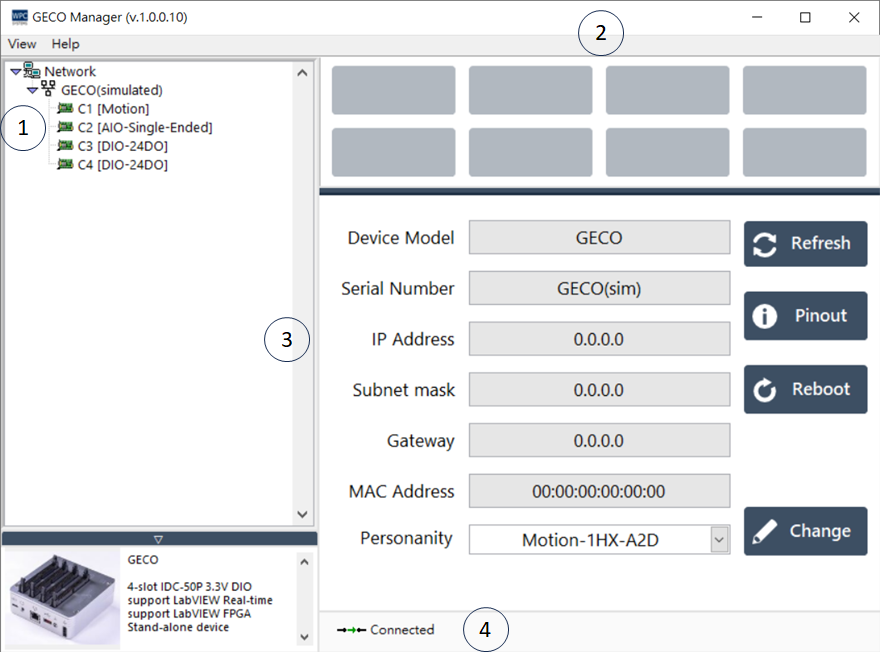
The functions of the main screen are described below:
- Network Device List: GECO devices will be listed here.
- Test Program Panel: Displays various test buttons based on the connected GECO modules.
- Product Information: Displays complete product details such as Serial Number, IP, MAC, and firmware version.
- Connection Status: The status bar shows the connection state between the computer and the device (e.g., Connected, Disconnected) or IP conflicts.
General Functions
Search and Refresh
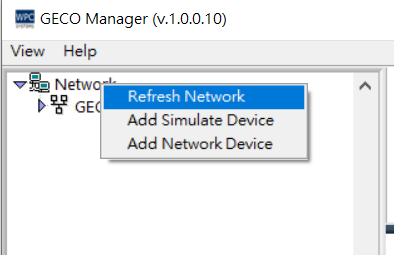
GECO Manager provides an automatic search function that scans for GECO devices within the local network.
- Network Devices: Move the mouse cursor to the "Network" area, right-click, and select "Refresh Network".
caution
If you cannot find your network device in the list, please ensure that the IP addresses of both the host computer and the device are within the same subnet.
Adding Simulated Devices
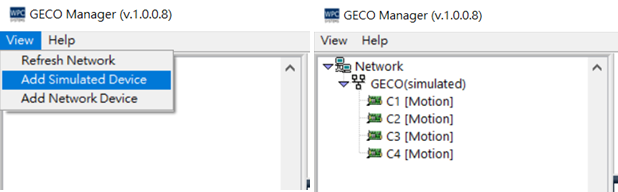
GECO Manager supports a simulated device feature, allowing users to preview pinouts and test panel functions without physical hardware.
- Click "View" in the menu bar.
- Select "Add Simulated Device".
- You can hold the Ctrl key to select multiple devices, then click "OK" to confirm.
These steps allow you to view detailed information through simulated devices without a physical connection.